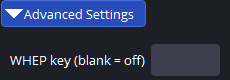
Your OBS program.
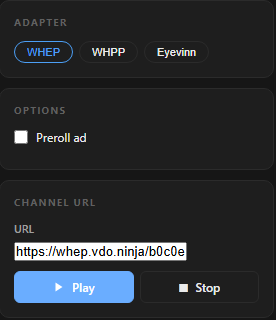
Your WHEP player.
Copy an endpoint from OBS and paste it into a compatible player. The player does not need VDO.Ninja.
Requires plugin v1.1.84 or later. Use H.264 video and Opus audio for the tested setup.
1Enable and copy
Open Tools → VDO.Ninja Studio → Publish. Set Max Viewers to allow everyone who will watch.
While stopped, click Copy WHEP Link. OBS saves a link key and copies the endpoint.
The copied address starts with https://whep.vdo.ninja/. Keep it private: anyone with the link can watch while this output is live.
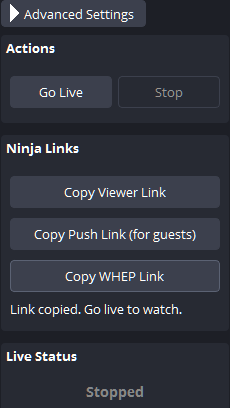
2Go live
Click Go Live. Wait for LIVE.
This uses OBS's main streaming output. It shares the picture, audio and encoder with your normal plugin viewers.
It does not run alongside another destination in that same OBS streaming slot. For participants in a VDO.Ninja room, use the separate Guest Return guide.
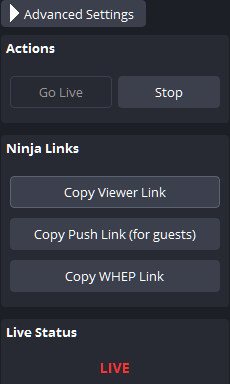
3Paste into your player
Paste the copied link into your player's WHEP endpoint or WHEP URL field, then start playback. Confirm that the picture moves and audio plays.
Try Eyevinn WebRTC Player: select WHEP, paste into URL, then click Play.
Opening the endpoint in a browser tab only shows the server's information page. Use the player's WHEP input.
Allow upload for every viewer. Each viewer receives a separate copy from OBS. The WHEP service handles signaling; it does not distribute the media for you.
Click Stop in OBS to end playback. After going live again, reconnect any player that does not retry automatically.
If playback does not start
- Enabled WHEP after going live? Stop, click Copy WHEP Link, then go live again.
- Viewer limit reached? Close an unused player, or stop and increase Max Viewers.
- Codec mismatch? Use H.264 and Opus. Firefox needs its OpenH264 codec enabled.
Player compatibility and current limits
H.264/Opus passed locally in Eyevinn and test players. A basic WHEP player also passed remotely on BrowserStack: Windows Chrome, macOS Chrome/Safari, Android Chrome and iPhone Safari.
For remote viewing, use a player with STUN configured. Cellular and TURN-only networks, other codecs, and macOS/Linux OBS publishing still need validation. BrowserStack's Firefox images lacked H.264; local Firefox with OpenH264 passed.
Some players can fail when joining at the same time. Retry them one at a time. Stop playback in the player when finished; a lost connection may take time to free its viewer slot.
Disable WHEP or replace its link
- Click Stop.
- Open Publish → Advanced Settings and clear WHEP key (blank = off). WHEP is now disabled.
- To enable it with a new link, click Copy WHEP Link, then go live again.
The old link will no longer work. Share the replacement with your viewers.