Windows Native App

Game Capture for VDO.Ninja

Publish games, app windows, or Spout2 VTuber avatars from Windows. Keep control simple: stream ID, room workflow, and OBS-ready view links, including transparent alpha video.

Latest release page: github.com/steveseguin/game-capture/releases/latest

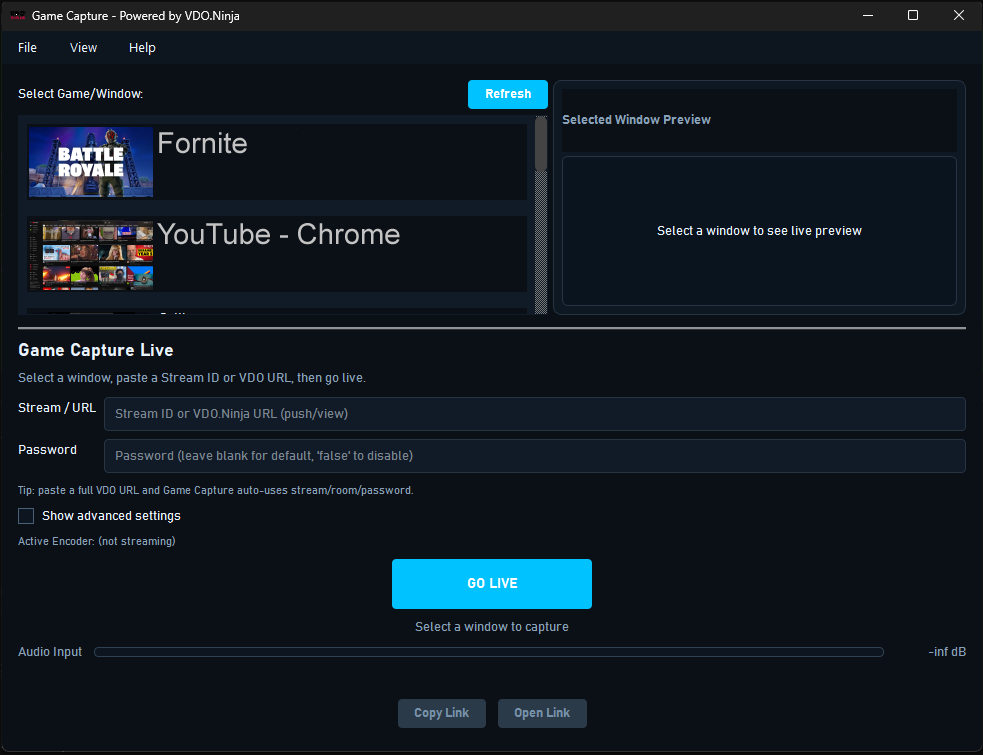
Game Capture app window showing window selection and go live controls
Current Windows app interface (native Qt build)

How It Works

  • Creator sets stream ID and shares a link with the guest.
  • Guest opens Game Capture and selects a game, app window, or Spout2 sender.
  • OBS uses view/scene links to pull the feed.
  • Room workflows support role-based quality control.

Why This App

  • Window audio capture without virtual audio cables.
  • Hardware-accelerated encoding for smoother performance.
  • Dual-stream quality model: HQ + LQ routing when needed.
  • Multiple viewers from one HD encode workflow.
  • No Electron runtime, low memory usage, native Qt app.
  • Simple alternative to OBS for guest-side game feed publishing.
  • Direct Spout2 input for VTuber avatars and transparent graphics.
  • Built for VDO.Ninja compatibility and link workflows.

Spout2 & VTuber Sources

  • Receive local Spout2 video from VTube Studio, Warudo, VSeeFace, VNyan, and similar Windows apps.
  • Enable Spout output in the avatar app, choose Spout2 (avatar apps), and select its sender.
  • Spout2 carries video only; choose an output mix or microphone separately if the feed needs audio.
  • Use VP9 with the OBS alpha workflow for true transparency, or chroma background with H.264/NVENC.
  • If the sender is black, set Game Capture and the sender app to the same GPU in Windows Graphics settings.

Open the Game Capture and Spout2 setup guide.

Alpha Workflow

  • Use VP9 (OBS Alpha Preview) with alpha enabled for transparent OBS playback.
  • VP9 alpha requires the bundled LGPL FFmpeg/libvpx VP9 encoder and is CPU-encoded.
  • Transparent OBS playback requires the VDO.Ninja OBS plugin with Use Native Receiver (Experimental) enabled.
  • OBS Browser Sources and normal browser viewers receive standard color video instead of composited transparency.
  • Compatible OBS VDO.Ninja native receivers upgrade that stream to transparency automatically.
  • For hardware encoding, use Alpha Background → Chroma background and key the selected color in the receiver.
  • VP9 alpha is CPU-heavy; try 1080p30 or 720p60 first if 1080p60 drops frames.
  • Leave alpha off when you want the widest viewer compatibility.

Current Scope

  • Windows only right now.
  • No auth guard for role claims (production tool model).
  • Limit max connections to protect publisher performance.
  • Public roadmap and test plans live in the GitHub repo.